No sign up to share a screen
Type your name, start a session and send the link. View only sessions need no account on either side.
Workspace Remote assist is free remote support in the browser. Start a screen share without an account, send the link and 6 digit code, and see the customer’s screen, talk to them and chat. Signed-in technicians can also control the mouse and keyboard on Windows, macOS or Linux after the customer approves it.
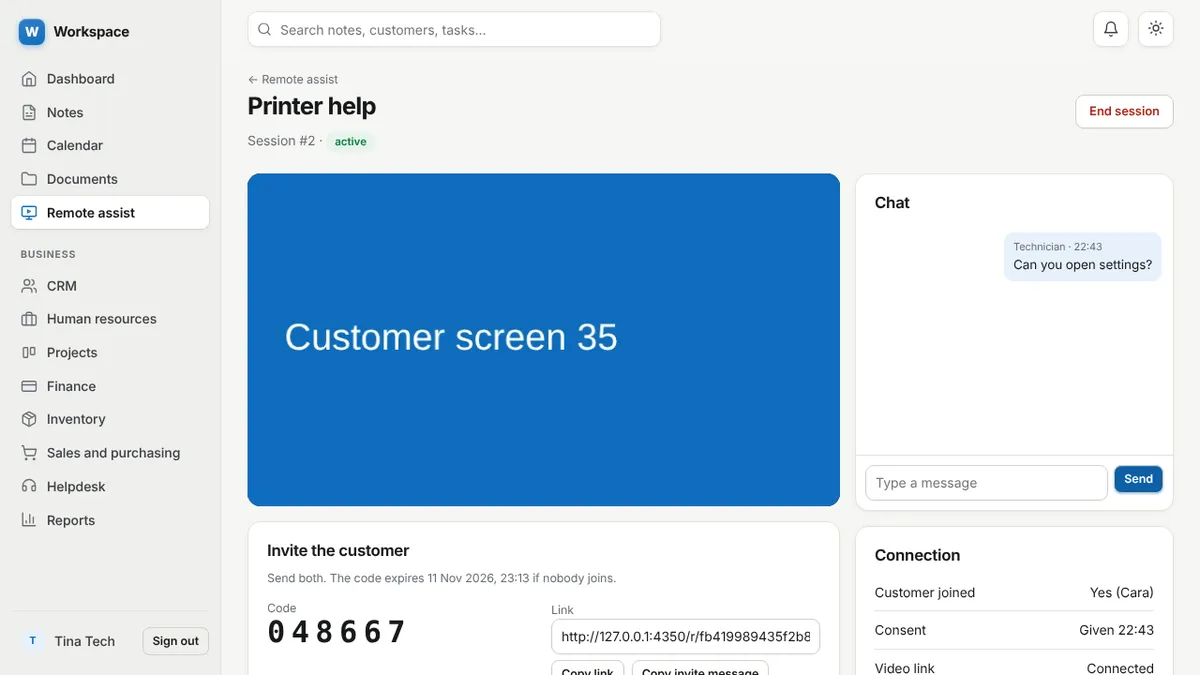
Type your name, start a session and send the link. View only sessions need no account on either side.
For signed-in technicians. The customer runs a small helper for Windows, macOS or Linux, approves twice, and can stop instantly.
To share a screen the customer needs only a desktop browser such as Chrome, Edge, Firefox or Safari.
Each session has a private link and a 6 digit code. Five wrong codes lock it.
The customer reads what will be shared and ticks a box before the browser asks what to share.
A red banner shows while sharing is on. Either side can end the session.
Talk while you work. Each side switches its own microphone on and off, and the voice goes directly between the two browsers.
Open the customer’s screen full screen. While you control it, hold Escape to leave full screen so a short Escape still reaches their computer.
The customer sees three steps: Allow, run the helper, share the entire screen. The page notices the helper by itself.
Chat during the session and see whether the video link is connected.
Code entry, consent, start, stop, control allowed and control stopped are logged with times.
Yes, when you are signed in. It works on Windows, and in beta on macOS and on Linux with an X11 session. The customer shares their entire screen, runs the small helper program, and approves control on the page and again in the helper window. They can stop at any time. Sessions without an account are view only.
Not to see a screen. Start a view only session with just your name. A free account adds mouse and keyboard control, session history and the audit trail.
Browsers do not let a web page move another computer’s mouse, which protects everyone. The helper is a small visible window that does it only after the customer clicks Yes, and stops when they close it.
Yes. Both sides have a microphone button. Voice is sent directly between the two browsers, like the video, and is not recorded. Headphones avoid echo.
No. Video and voice go directly between the two browsers and are not stored.
The technician can watch on any device. The customer needs a desktop browser, because phone browsers cannot share the screen with a web page.
See a customer’s screen with no sign up and nothing to install. Send a link and a 6 digit code, they press Allow, and their screen appears in your browser. Talk by voice or chat while you work. A signed-in technician can also use the mouse and keyboard on Windows, macOS or Linux after the customer approves it.
Helper downloads: Windows · macOS · Linux. Screen sharing alone needs no download on any of them.
| System | Share screen | Mouse and keyboard control |
|---|---|---|
| Windows 10 and 11 | In the browser, no download | Yes, with the helper (beta) |
| macOS | In the browser, no download | Yes, with the helper (beta) |
| Linux | In the browser, no download | Yes on X11 (Xorg) sessions, with the helper (beta) |
Requirements: a current desktop browser on both sides. Windows needs 64 bit Windows 10 or 11. On a Mac, allow Terminal in System Settings, Privacy & Security, Accessibility. On Linux, control needs an X11 (Xorg) session; Wayland stays view only. The helpers are not code signed yet, so Windows and macOS show a warning the first time. Phones can watch a session but cannot share their screen.
Sign up with an email address. Every module is ready.